- Go to 25 client machine login and follow the steps below
- Open the command promt as Administrator
- Rearm the machine with command: "c:\windows\system32\" cscript slmgr.vbs /rearm
- Restart the machine
- log back in and open the command prompt as Administrator
- Find the windows client machine OS for example Windows7 client setup key and install the setup key using command: "c:\windows\system32\" cscript slmgr.vbs /ipk FJ82H-XT6CR-J8D7P-XQJJ2-GPDD4
- cscript slmgr.vbs /ato
Tuesday, 6 May 2014
KMS: How to increase the initial KMS count to 25 machine
How to increase the initial KMS count to 25 machine

KMS: KMS host and client
Microsoft: KMS host and client
KMS (Key Management Server)
What is a KMS?
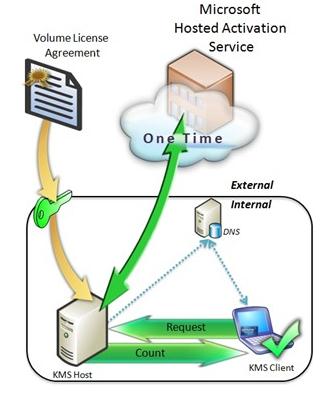
KMS activates the clients operating system on your network instead of each client connecting to Microsoft. To do this, KMS uses a client/server method of implementation. KMS clients connect to a KMS server, called the KMS host, for activation. The KMS host resides on your local network.
On what types of product does it work?
With Volume Licensing for products such as Windows 7, Windows Server 2008 R2, Windows Vista, Windows Server 2008, and Microsoft Office 2010, you must use a new type of product activation called Volume Activation (VA). To activate these operating systems with VA, you can use either a Multiple Activation Key (MAK) or Key Management Service (KMS), requiring a KMS key.
How many clients is required?
You will need at least 25 clients, the network must meet or exceed the activation threshold, or the minimum number of qualifying computers that KMS requires. Computers running Windows 7 must receive an activation count ≥25 to be activated. KMS clients in the grace state that are not activated because the activation count is too low connect to the KMS host every two hours to get the current activation count and will be activated when the threshold is met.
How does the KMS host keep values alive/uptodate ?
To track the activation threshold, the KMS host keeps a record of the KMS client computers that request activation. The KMS host gives each KMS client computer a client machine identification (CMID) designation, and the KMS host saves each CMID in a table. Each activation request remains in the table for 30 days. When a client computer renews its activation, the cached CMID is removed from the table, a new record is created, and the 30-day period begins again. If a KMS client computer does not renew its activation within 30 days, the KMS host removes the corresponding CMID from the table and reduces the activation count by one.
How long is an activation valid?
KMS activations are valid for 180 days. To remain activated, KMS client computers must renew their activation by connecting to the KMS host at least once every 180 days. By default, KMS client computers attempt to renew their activation every seven days. If KMS activation fails , the client will retry every two hours. After a client computer’s activation is renewed, the activation validity interval begins again.
How does clients discover the host?
By default, KMS clients query DNS for KMS service information. The first time a KMS client queries DNS for KMS service information, it randomly chooses a KMS host from the list of SRV RRs that DNS returns.

By default, client computers connect to the KMS host for activation by using anonymous RPCs through TCP port 1688. (You can change the default port.) After establishing a TCP session with the KMS host, the client sends a single request packet. The KMS host responds with the activation count. If the count meets or exceeds the activation threshold for that operating system, the client is activated and the session is closed. The KMS client uses this same process for renewal requests. The communication each way is 250 bytes.
Setup in 5 easy steps:
1. Enter the DNS on the primary Domain Controller (or if you have a separate icensserver on the selected network. Navigate Forward Lookupzone > *Domain* > _tcp >. Edit the _VLMCS value as followed:

2. Connect to your DC/License server. Add following command with your KMS Key: slmgr.vbs /ipkxxxx.xxxx.xxxx.xxxx

You should see something like this:
Microsoft ® Windows Script Host Version 5.7
Copyright © Microsoft Corporation. All rights reserved.
Installed product key xxxxx-xxxxx-xxxxx-xxxxx-xxxxx successfully.
Copyright © Microsoft Corporation. All rights reserved.
Installed product key xxxxx-xxxxx-xxxxx-xxxxx-xxxxx successfully.
3. Type slmgr.vbs /dlv to check that KMS could activate to Microsoft, and to see status of clients who have tried to establish connection to the kms host: 

4. Make firewall rules to accespt KMS traffic. (not necessary) In Windows Firewall, click on Exceptions and allow the now listed Key Management Services, failure to do this step will mean that your KMS hosts can not talk to the KMS service and therefore will not activate.
KMS listens on port 1688, to change the port you must do as follows:


5. Test the conneciton type following in CMD:

And we are done, happy licensing !
KMS: How to remove a KMS Server from your infrastructure
These days I took a swing at some clean-up I had to do in our KMS servers list. In any large environment you are bound to find some configurations you either did not put in place (there is usually more than 1 person managing it) or put in place for testing and forgot to remove them. I’m mainly referring to KMS servers that may have once been used to activate Windows licenses, or people have attempted to set them up that way (but failed for one or more reasons). You might have this problem too in your environment, and not know about it. Usually any “rogue” or unauthorized KMS servers also publish their KMS service in DNS. This means that when a client tries to activate it will pick one of the servers that offer the _VLMCS service (license activation) in the _TCP node of the DNS suffixes he has configured or his own domain name. By default all KMS hosts publish their Service Record with equal priority and weight, so with few KMS hosts, there’s a high chance you will get sent to the wrong/rogue KMS. If the client picks the correct KMS host, all is well with the world, if not, they get an error and you get an unneeded support call that users can’t activate their Windows.
To fix this you should first find the rogue KMS hosts. Since the information is published in your DNS, this nslookup query should reveal your servers:
1
| nslookup -q=srv _vlmcs._tcp.contoso.com |
Run this for all your subdomain’s fqdn to list all servers. A sample output would be this:
01
02
03
04
05
06
07
08
09
10
11
12
13
14
15
| Server: dc1.contoso.comAddress: 192.100.5.10_vlmcs._tcp.contoso.com SRV service location: priority = 0 weight = 0 port = 1688 svr hostname = KMS01.contoso.com_vlmcs._tcp.contoso.com SRV service location: priority = 0 weight = 0 port = 1688 svr hostname = John-Desktop.contoso.comKMS01.contoso.com internet address = 192.41.5.4John-Desktop.contoso.com internet address = 192.20.50.20 |
As you see, we have 2 KMS host entries, one seems valid, the other looks like someone attempted to activate his PC the wrong way and ended up publishing KMS service records in DNS. Here’s how to remove this, for good. Some of the steps are taken from technet documentation, some are from social.technet site.
- Login/RDP/PSEXEC to the affected host (John-Desktop) and uninstall KMS product key. To do this, run this from an elevated command prompt:
1
| cscript %windir%\system32\slmgr.vbs /upk |
- Install the default KMS client key, found here:
1
| cscript %windir%\system32\slmgr.vbs /IPK [KMS client Setup Key]" |
- Activate the computer as a client using the command below. In our case it would go to the KMS01.constoso.com host
1
| cscript %windir%\system32\slmgr.vbs /ato" |
- Now you should stop this record from being published in DNS. You guessed it, just because you uninstalled the KMS host key and put in the client Key doesn’t mean he stopped advertising KMS in DNS. If you are running Windows 2008 R2, slmgr.vbs has a switch which does this for you:
1
| cscript %windir%\system32\slmgr.vbs /cdns" |
Important Note: If you are running Windows 2008 not Windows 2008 R2 there is no /cdns switch. Also you cannot run slmgr.vbs from a 2008 R2 box over the 2008 machine with that switch, it will say the something like this:
1
2
3
4
| Microsoft (R) Windows Script Host Version 5.8Copyright (C) Microsoft Corporation. All rights reserved.The remote machine does not support this version of SLMgr.vbs |
This is also a good “failsafe” command in case the /cdns switch didn’t work for Windows 2008 R2. Changing this registry key worked for me, other people suggested other fixes (here) but along the same lines, I didn’t test them. You need to run this command from an elevated command prompt:
1
| reg add "HKLM\SOFTWARE\Microsoft\Windows NT\CurrentVersion\SL" /v DisableDnsPublishing /t REG_DWORD /d 1 |
- Stop and Start the Software Licensing Service:
1
2
3
| net stop SLSVCnet start SLSVC |
Update: If running Windows 2008 R2 you should look at restarting Software Protection Service
1
2
3
| net stop "Software Protection"net start "Software Protection" |
- Remove the _vlmcs KMS service record for John-Desktop from the contoso.com _tcp node. You can do this via dnsmgmt.msc console
That’s about it, Hope someone finds this one useful. Any comments are welcome.
Subscribe to:
Posts (Atom)